Smart, Real-Time Protection for Your Digital Life. Because your digital life is different from ordinary people.
Nyroxis SIEM — User Guide
A silent, offline security monitor for your Windows computer. Watches processes, network, files, USB and registry — alerts you instantly when something suspicious happens. Nothing leaves your device.
License & installation
Go to nyroxis.com, choose your plan, and complete the purchase. Within minutes, a license key (format: NYX-XXXX-XXXX-XXXX) will be sent to your email address.
Go to nyroxis.com/download and download the Windows installer (.exe file). Run it and follow the installation steps. Windows 10 or 11 (64-bit) required.
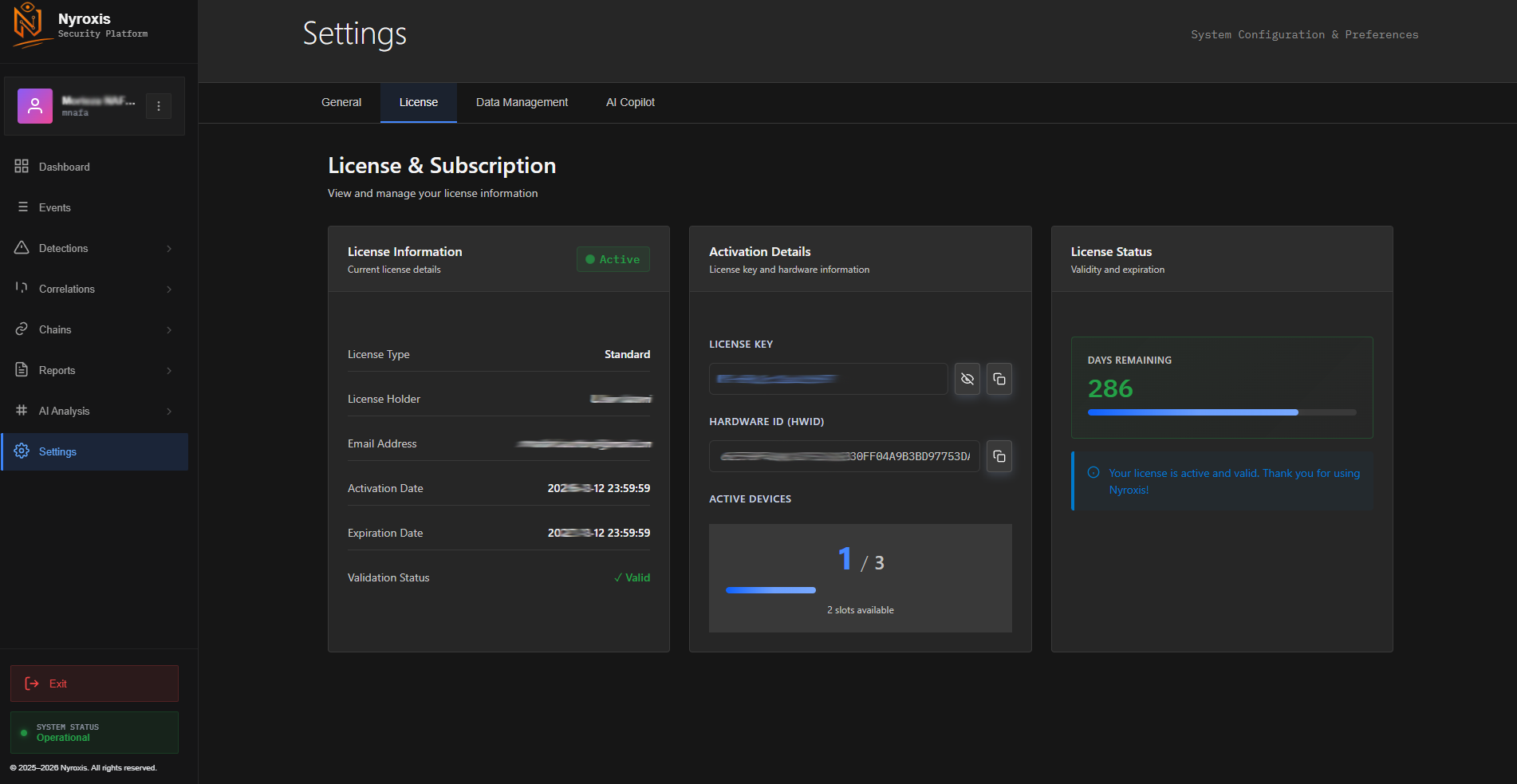
Open Nyroxis SIEM. Click Settings in the left sidebar, then the License tab. Enter your license key and click Activate. Your license is tied to your hardware (HWID) — it can be used on up to 3 devices.
Dashboard overview
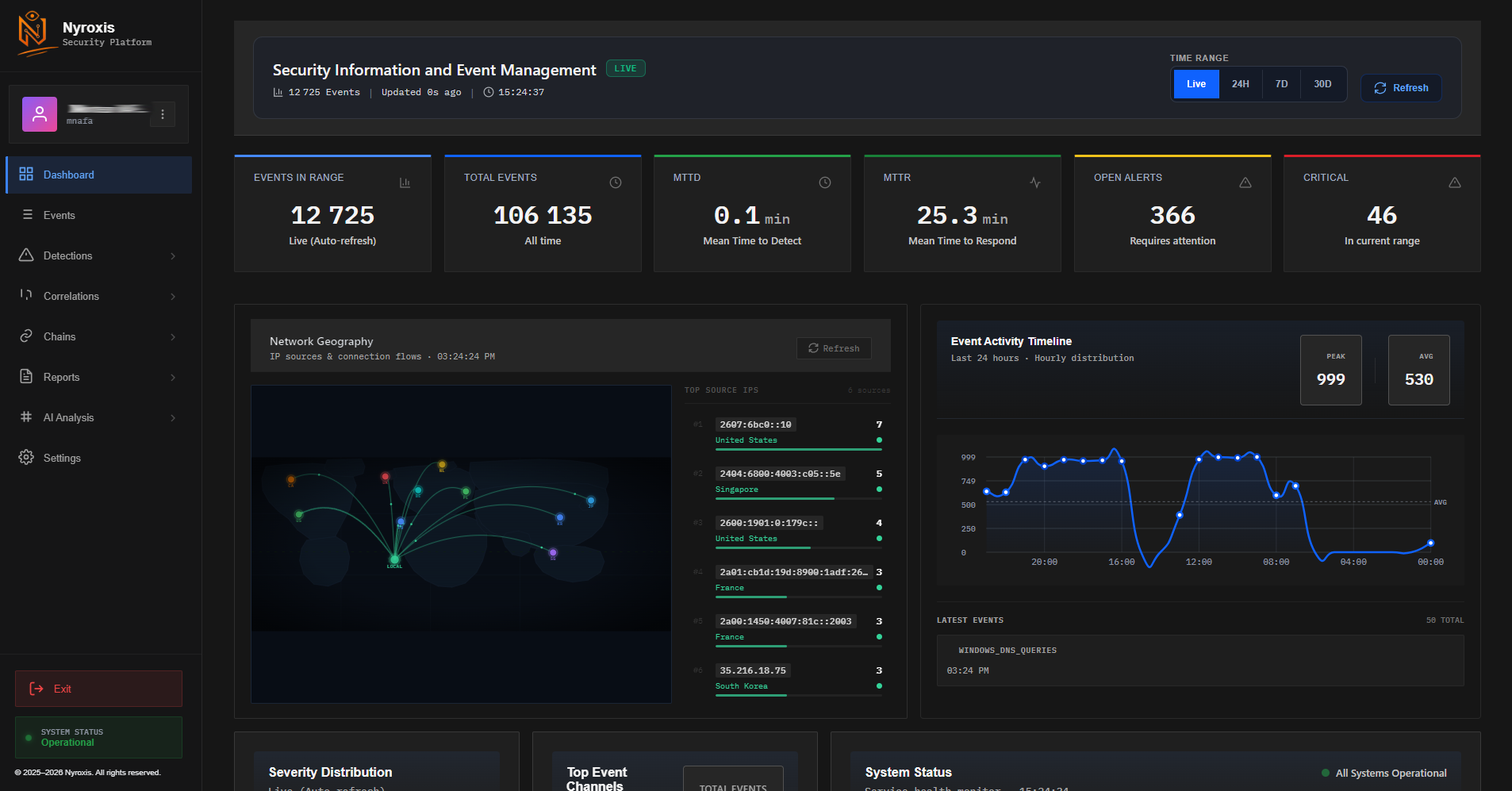
Left sidebar — navigation menu
Security events
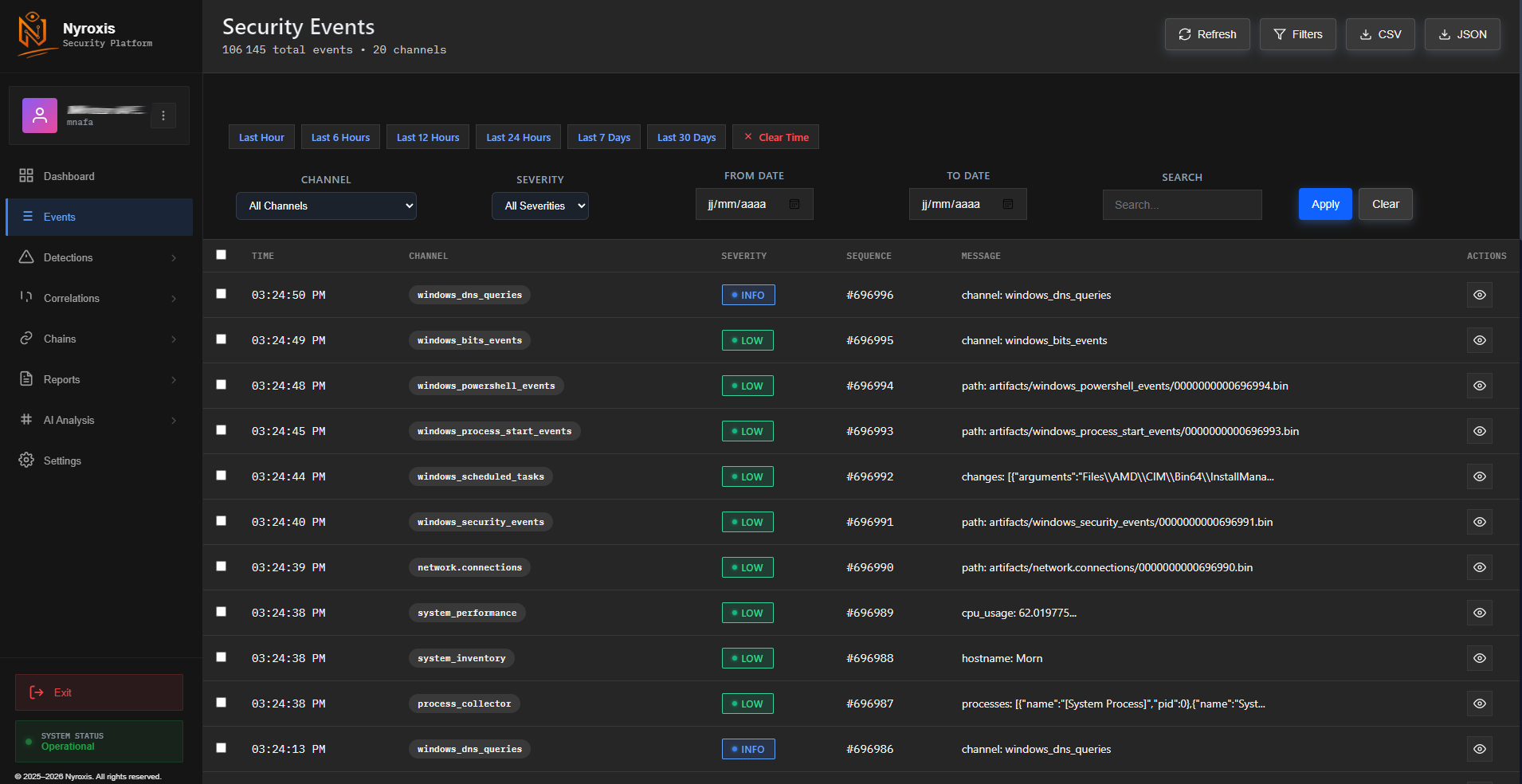
The Events section shows every activity recorded by Nyroxis SIEM. These are raw data — not necessarily threats. You can filter by channel (network connections, processes, registry, etc.), severity level, or date range.
Alerts & detections
Reading a security alert
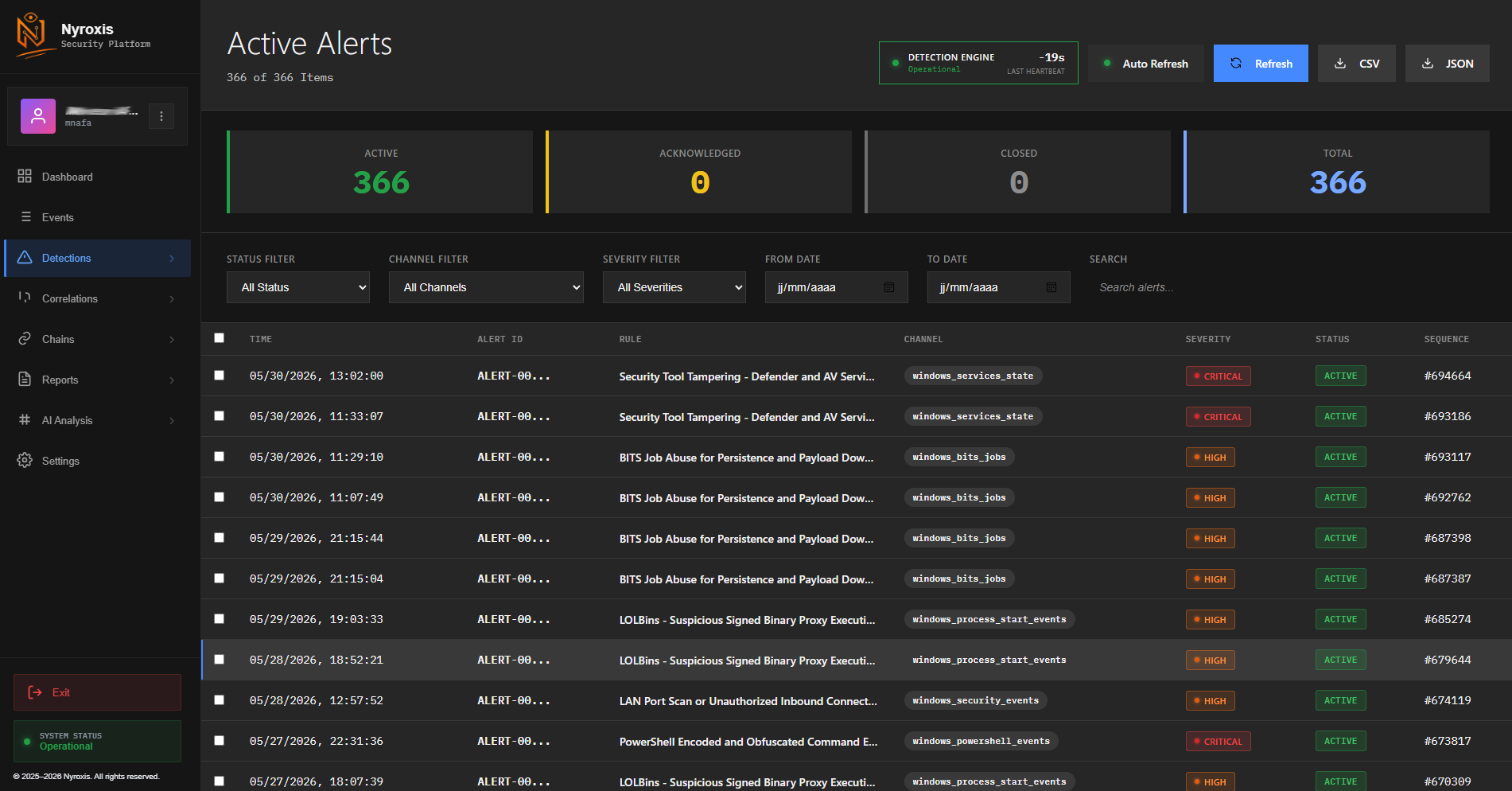
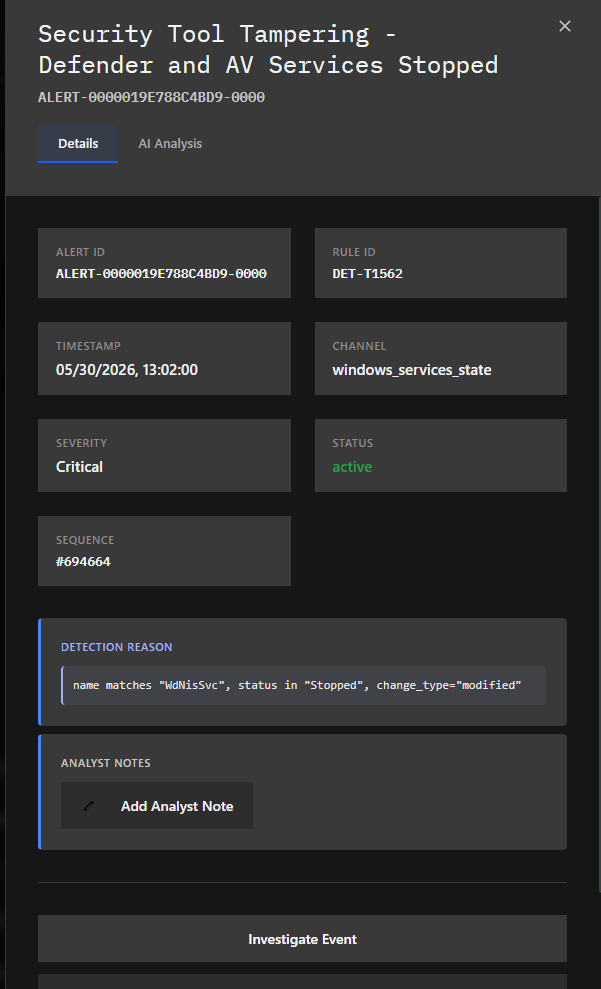
Alert severity levels
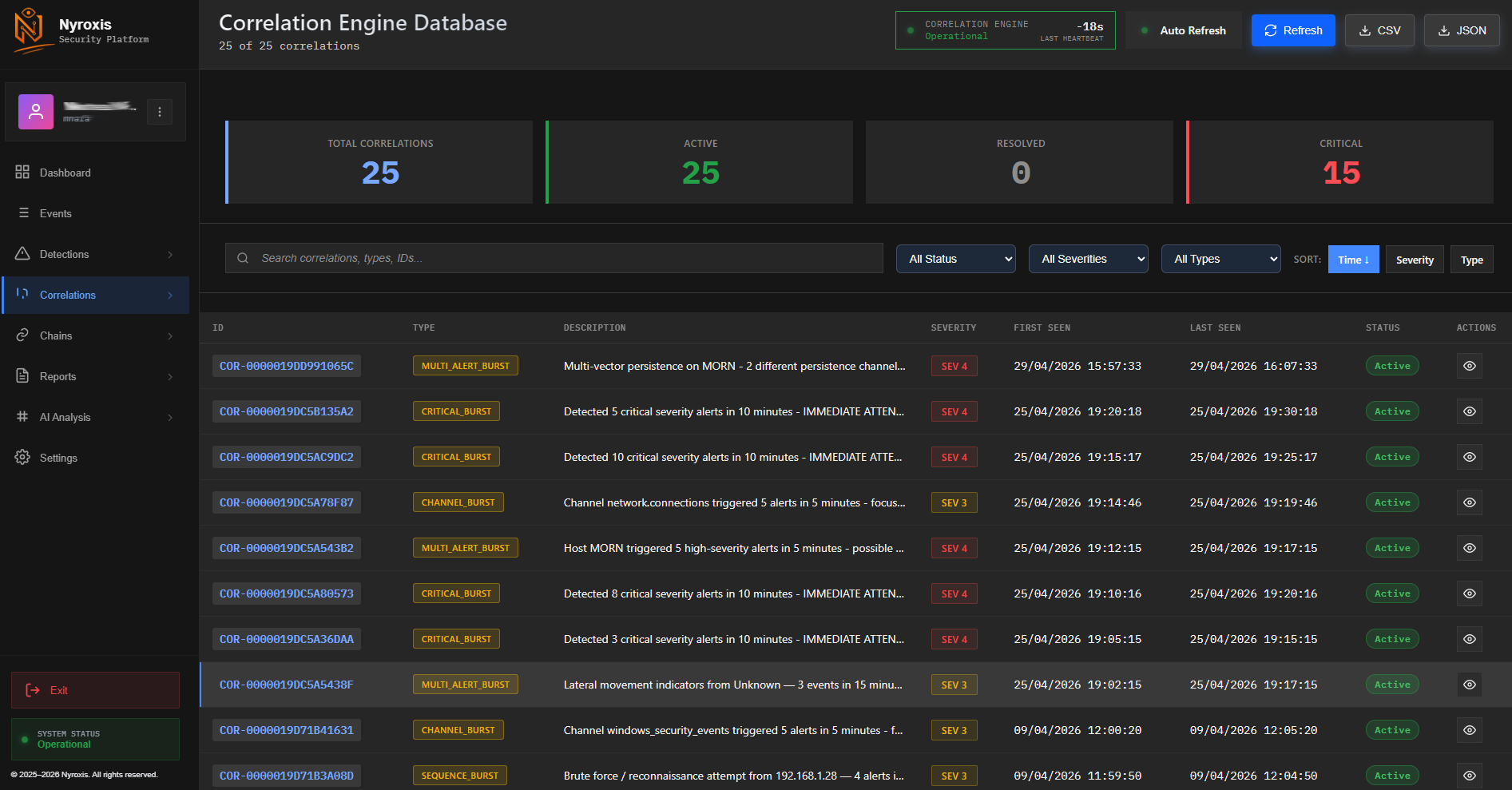
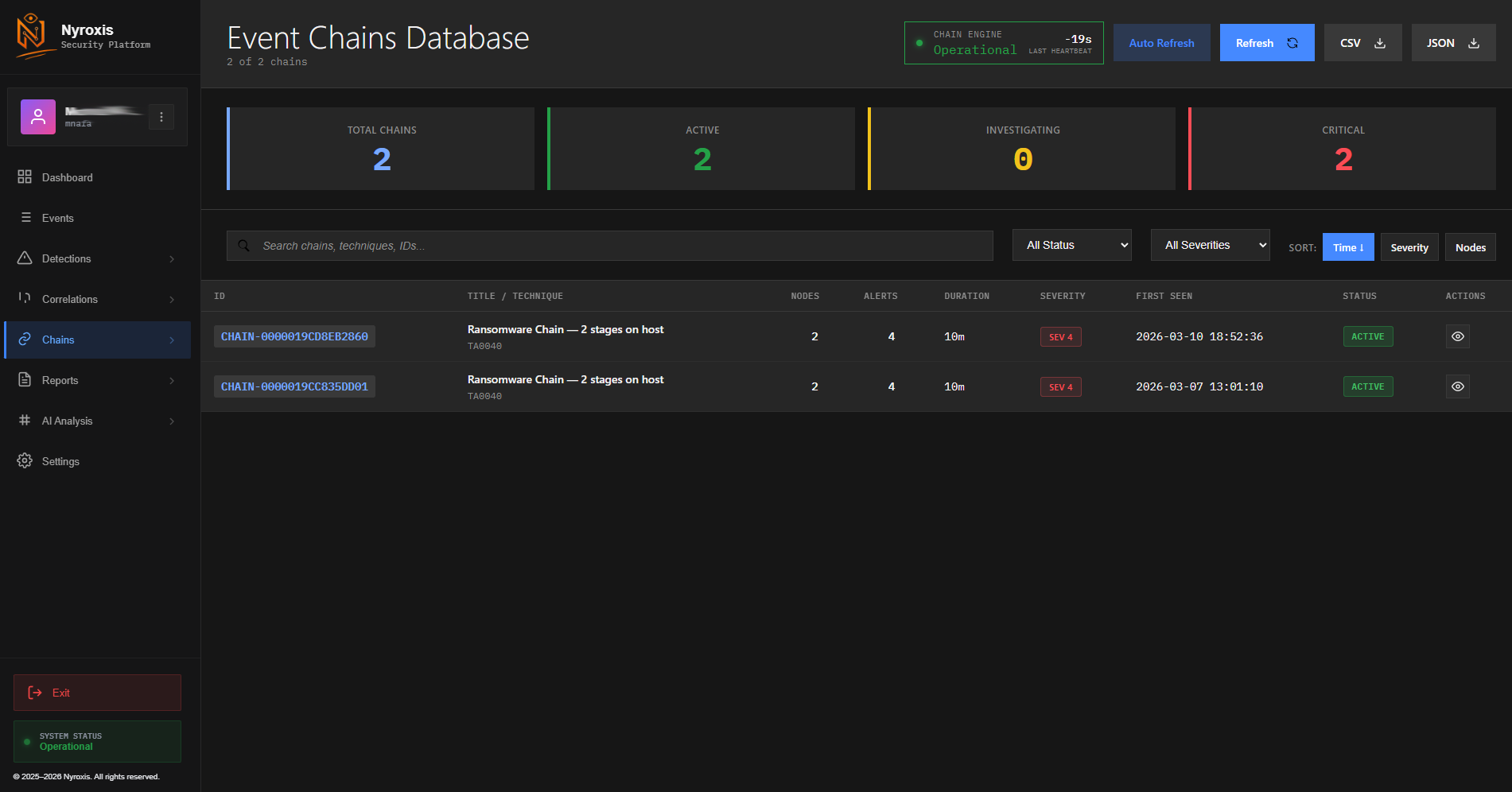
Correlations & attack chains
Reports
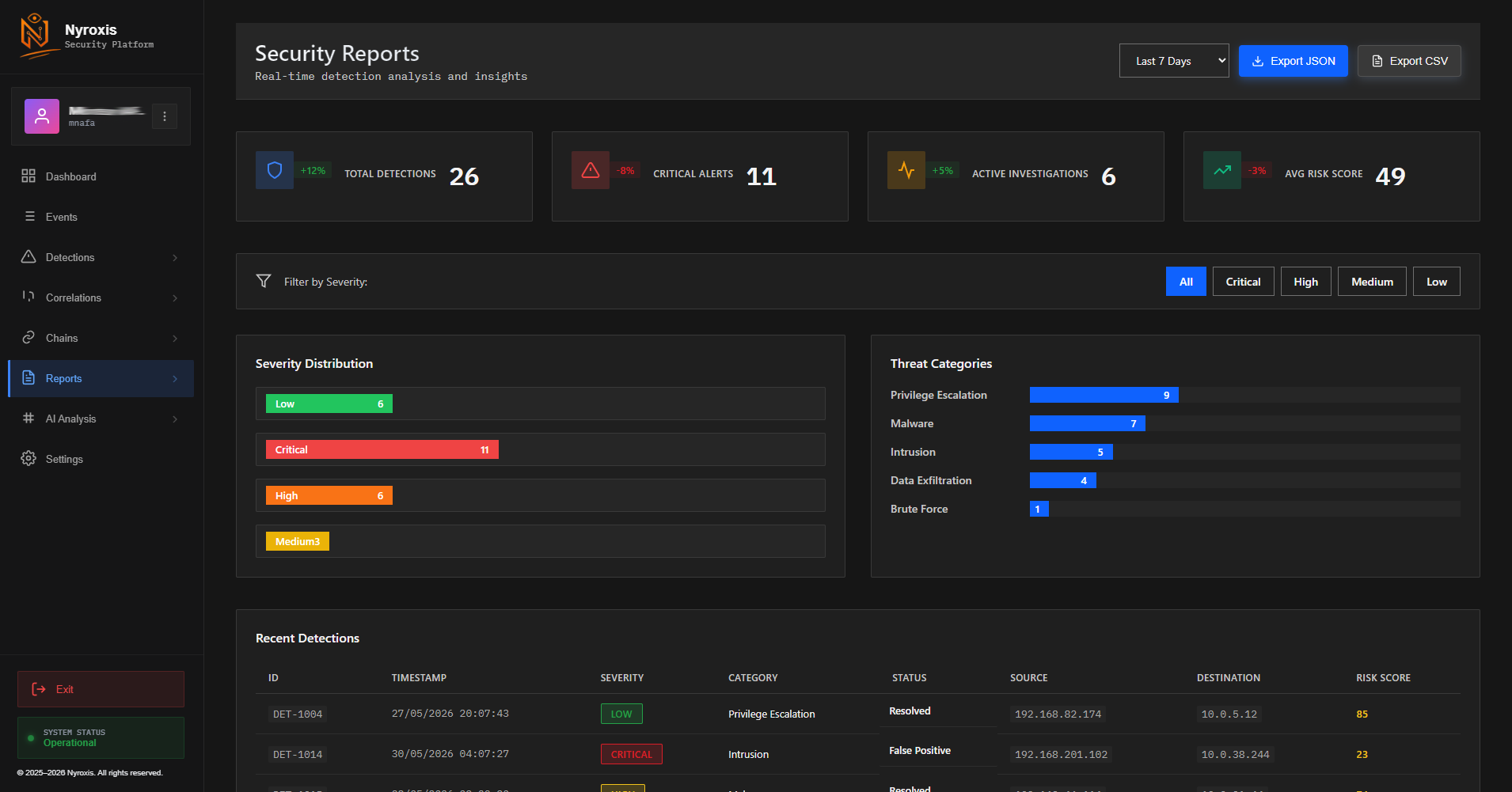
The Reports section lets you export your security data for external analysis, audits, or legal evidence. All reports include timestamps, event details, detection rules triggered, and severity levels.
AI Copilot
When you receive an alert you don’t understand, the AI Copilot explains it in plain language — what happened, how serious it is, and what to do. It uses your nyroxis.ai account (Pro or higher). Only alert metadata is sent — no raw logs, no personal files, no sensitive data ever leave your device.
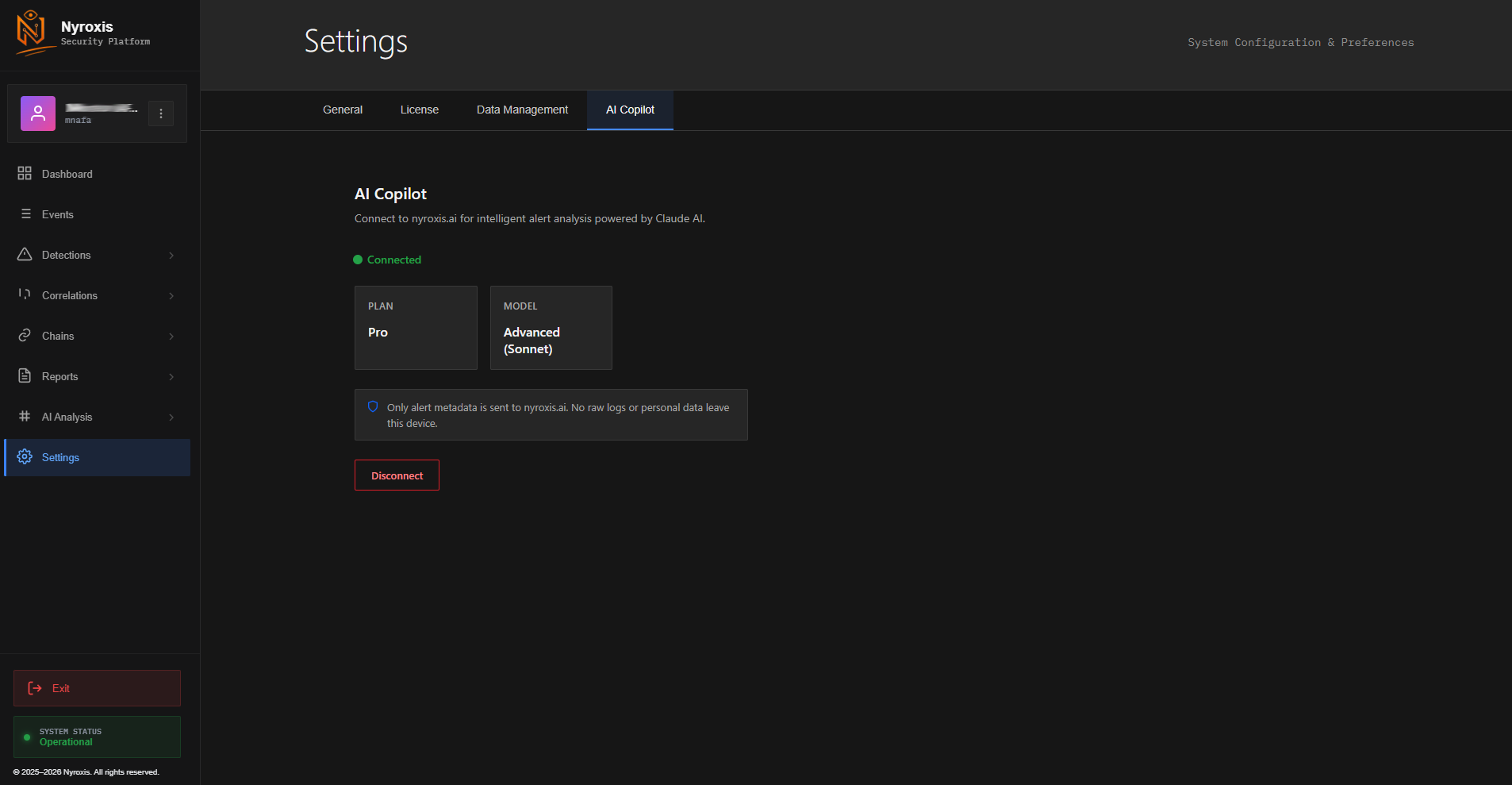
Click Settings in the left sidebar, then the AI Copilot tab. You’ll see the connection panel.
You need a nyroxis.ai account with a Pro plan (or higher). Follow the on-screen instructions to generate a device key from nyroxis.ai and paste it into the connection field here.
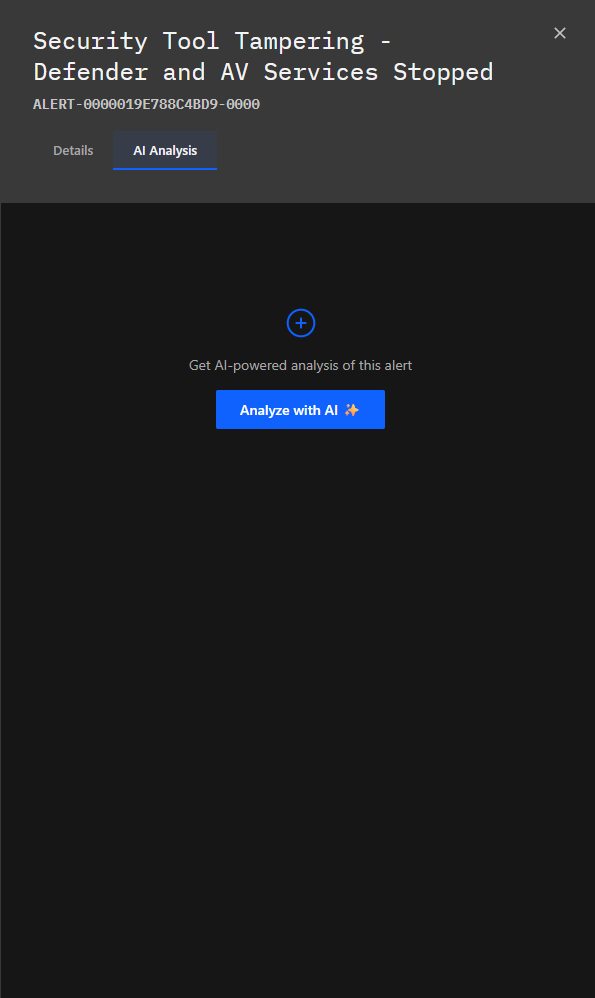
Open a detection or correlation. Click the AI Analysis tab inside the detail panel. Press the blue “Analyze with AI “ button. Within seconds you’ll get a full explanation.
Settings
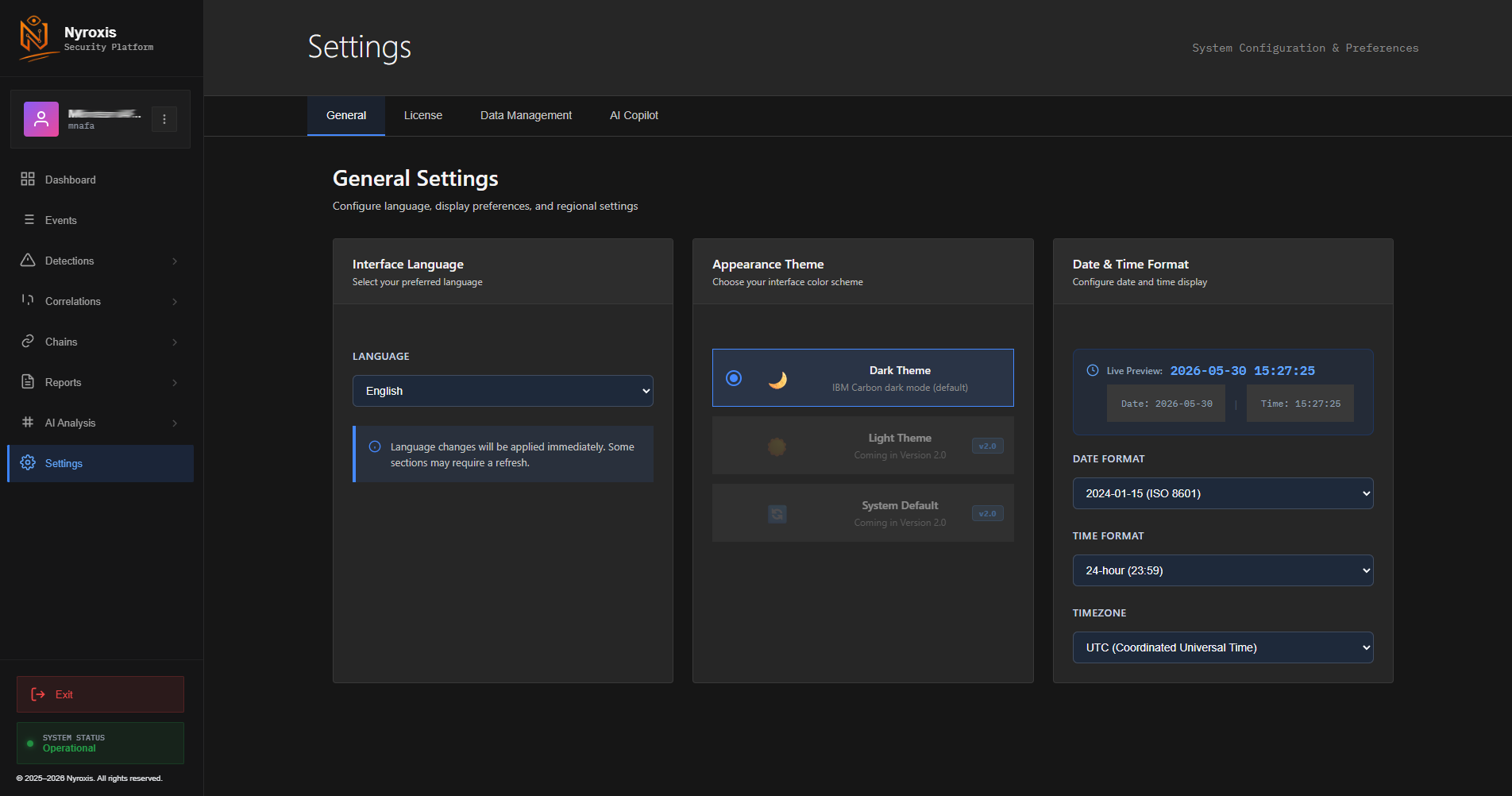
License — View your license key, plan type, activation/expiry dates, and active device count
Data Management — Control database size, set retention periods, optimize storage
AI Copilot — Connect or disconnect your nyroxis.ai account, view connection status and plan